Samsung's One UI 8.5 introduces powerful customization features that let you personalize your battery indicator display. This guide shows you exactly how to modify your battery icon to match your style and preferences.
Samsung's One UI 8.5 brings fresh customization options to Galaxy devices, including enhanced control over the battery indicator. If you've updated your Samsung phone or tablet to this version, you might notice the updated status bar design. The battery indicator now features a pill-shaped icon by default, which fills with color based on charge level and includes the percentage number inside.
However, not everyone loves this look. Some users describe it as "fat" or "bulky," saying it takes up unnecessary space and can be hard to read at a glance. Fortunately, Samsung has listened to feedback and introduced a simple way to adjust it.
Understanding the Battery Indicator in One UI 8.5
The battery indicator sits in the top-right corner of your screen, part of the status bar. In One UI 8.5, Samsung refined this element to align with modern Android trends. The default setup shows a horizontal pill that visually represents battery life, with the percentage overlaid. This design aims to provide at-a-glance information without pulling down the notification shade. But if it feels distracting, you can switch to a text-only view.
Samsung rolled out One UI 8.5 as a mid-cycle update, building on One UI 8. It focuses on quality-of-life improvements, including UI tweaks for smoother interactions. The battery customization stems from community requests on forums like Samsung's official community and Reddit, where users voiced frustration over limited options in earlier builds.
Step-by-Step Guide: How to Change Battery Indicator on One UI 8.5
- Unlock your Samsung Galaxy device and open the Settings app. You can find it in your app drawer or by swiping down and tapping the gear icon.
- Scroll through the menu and tap on Notifications. This section handles alerts, quick settings, and status bar elements.
- Inside Notifications, select Status bar. Here, you'll see various toggles for what appears at the top of your screen.
- Locate the option called Show battery background. This is the key setting for the battery indicator.
- Toggle Show battery background off. When disabled, the pill-shaped icon disappears, leaving only the battery percentage with a % symbol. Toggle it back on if you prefer the visual icon.
After making the change, exit Settings. Your status bar updates instantly. No restart is needed. This feature is available on all devices running One UI 8.5, including the Galaxy S series, A series, and foldables.
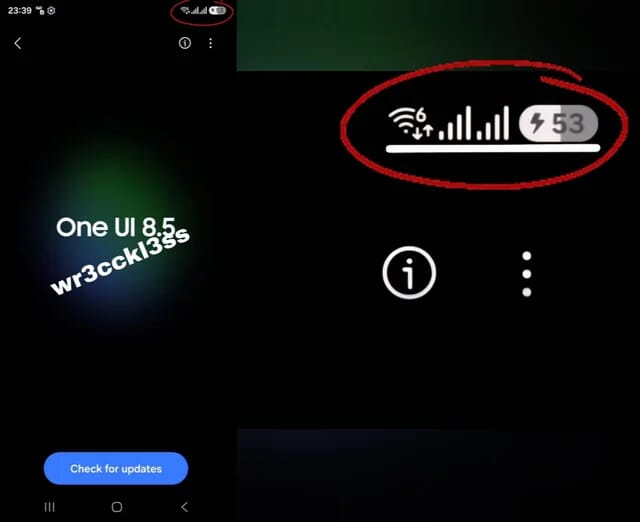
Image Courtesy: Reddit
New Features in Battery Customization for One UI 8.5
One UI 8.5 introduces the Show battery background toggle as a dedicated option. In prior versions like One UI 7 or 8, you could only show or hide the percentage, but the icon was always present. Now, the percentage is always visible, and you control the icon separately. This gives more flexibility.
Other related enhancements include better integration with themes and always-on display. If you use Good Lock modules, you can layer additional customizations, like changing icon colors via Theme Park. However, the core toggle doesn't require extra apps, making it accessible for everyone.
Samsung tested this in the One UI 8.5 beta program. Early adopters reported improved satisfaction, with many praising the cleaner look on high-resolution screens.
User Feedback and Common Issues with Battery Indicator on One UI 8.5
Feedback from users has been mixed but mostly positive about the customization. On Reddit and Samsung forums, threads highlight relief over ditching the "pill" design. One user noted, "It's legitimately hard to read the old icon quickly." Others appreciate the space savings on smaller screens.
Some report minor bugs in beta versions, like the toggle not saving after reboots. If you encounter this, ensure your device is fully updated. Samsung typically fixes such issues in stable releases. Overall, this change reflects Samsung's push toward user-centric design, responding to complaints from One UI 8 where the icon felt unchanged and outdated.
Advanced Tips for Battery Management in One UI 8.5
Beyond the indicator, explore the Battery section in Settings. Enable adaptive battery for AI-optimized usage. Set limits on background apps to extend life.
If the toggle isn't appearing, verify your software version in Settings > About phone. One UI 8.5 is rolling out to devices like the Galaxy S25 series first. For older models, check for updates regularly.
Users on forums suggest using this alongside dark mode for better visibility. If you revert changes, the default pill returns seamlessly.
Historical Context: Evolution of Samsung's UI Battery Design
Samsung's One UI evolved from TouchWiz, emphasizing simplicity. Early versions had basic battery bars. By One UI 5, percentages became standard. The pill design drew from Material You in Android, but Samsung adapted it uniquely.
In 2025, with One UI 8.5, the focus shifted to feedback-driven updates. This battery tweak is part of broader refinements, like improved animations and accessibility options.
This small change exemplifies Samsung's commitment to user choice. By allowing you to hide the battery pill, One UI 8.5 enhances everyday usability. Experiment with the toggle to find what suits your style. Stay updated for more features in future patches.